How to Download Your Instagram Data — Followers and Following
Updated 2026-10-04
To compare your followers and following, export both lists from one Instagram profile. This guide covers preparing the file and selecting it in UnfollowScan. Menu labels can vary by device and app version; Meta currently calls this feature “Export your information.”
Already have your files? Get a free count →
Before you start
- You can do this on the Instagram app (iPhone/Android) or on instagram.com in a browser. Both work.
- Meta sends a notification when your download is ready. Preparation time varies; it is not an instant email attachment.
- Pick the JSON or HTML format. Either works with UnfollowScan.
- The scan and counts are free. Revealing usernames and downloading CSV requires a verified $5 USD one-time payment.
Step 1 — Open Accounts Center
Open Instagram’s settings from your profile menu and look for Accounts Center. On the website, use More → Settings → Accounts Center.
Step 2 — Open “Export your information” → Create export
- In Accounts Center, tap Your information and permissions → Export your information (called “Download your information” in some versions).
- On the “Export your information” screen, tap the blue Create export button.
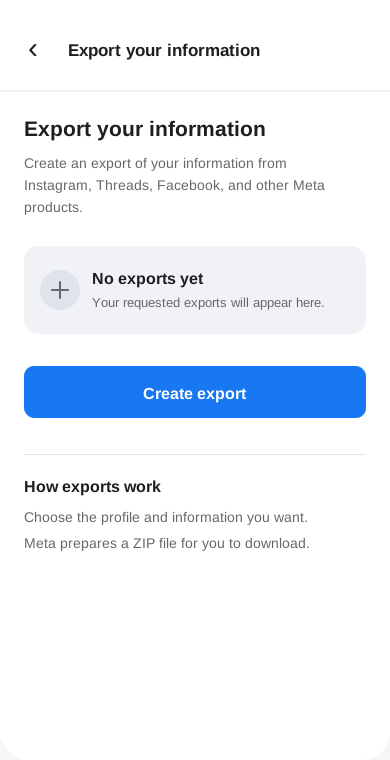
Step 3 — Choose one Instagram profile
Select only the Instagram profile you want to scan. Keep different profiles, platforms and export dates separate. A combined Instagram-and-Threads archive is not a supported way to compare both accounts in one scan.
Step 4 — Choose where to export
On “Choose where to export”, tap Export to device (not “Export to external service”).
Step 5 — Confirm your export: Customize info, date, format
You land on the “Confirm your export” screen. Three settings matter:
- Customize information → tap it, then Clear all, scroll to the Connections section, and check only “Followers and following”. Tap Save. (This is the step that saves you time — don’t export everything.)
- Date range → set to All time.
- Format → JSON (easiest) or HTML — both work with UnfollowScan.
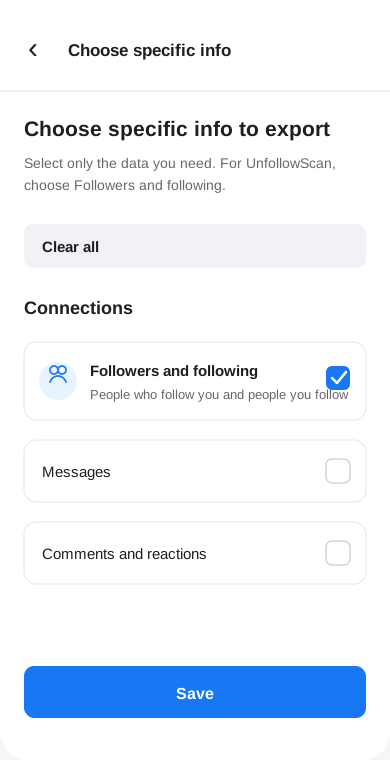
Then tap Start export.
Step 6 — Wait for the email, then download
Check Available downloads in Accounts Center when Meta notifies you. Meta says preparing the export link can take up to 30 days, and a ready download is available for four days. Download through Instagram or Accounts Center; enter your password only on Meta’s own site, never in UnfollowScan. See Meta’s export instructions.
Step 7 — Select the ZIP or all extracted list files
Open the scanner and select the original ZIP. You do not need to unzip it.
If your device already extracted it, select all follower files and the following file
together, such as followers_1.json, followers_2.json (if present),
and following.json. The corresponding HTML files also work. Keep their original names.
On a phone, use the file picker’s multiple-selection option. If it only lets you choose one file,
select the original ZIP instead. Selecting only followers_1.json is not a complete scan:
the following list is needed too.
Without a saved baseline, the free result counts accounts you follow that are absent from the exported followers list. It does not prove when they stopped following you. To compare over time, choose Save this export as baseline, then scan a newer export of the same profile in the same browser. Read how that comparison works.
Usernames and CSV unlock after the server verifies payment. If you return from checkout and verification fails, retry verification or use the support link before paying again. Files are processed in your browser. Results may be kept in session storage for checkout recovery; a baseline you choose to save stays in that browser until its site data is cleared.
Stuck? Common issues
- Email hasn’t arrived: check the export’s status in Accounts Center and your spam folder. Do not assume a delay means the request failed.
- Missing followers or following: select both lists from the same export, including every numbered follower part. An export missing a part may produce an incomplete count.
- Multiple profiles or exports: request one profile’s Followers and following data and select one ZIP, without adding extracted files alongside it.
- File cannot be read: use the original relationship files rather than a screenshot, index page or renamed document. If an HTML list is empty, try a JSON export.
- Baseline will not save: browser storage may be blocked or full. A current scan can still work, but a later comparison needs the saved baseline.
Select your export and get a free count →
Want to check yours right now?
Scan one Instagram export in your browser without sharing your password. Counts are free; usernames and CSV cost $5 USD plus applicable taxes, paid once. Review the final amount and currency at checkout.
Get my free count →